AI categorization that shows its confidence
Dyna suggests. You approve. Merchants you have confirmed fill in on their own.
Most of your transactions are routine, so you shouldn’t have to think about them. Dyna suggests the account, shows how sure it is, and puts only the uncertain ones in front of you. Reviewing a week of activity becomes a few taps.
14-day free trial · No credit card required
Included in: Every paid plan, within your monthly AI allowance
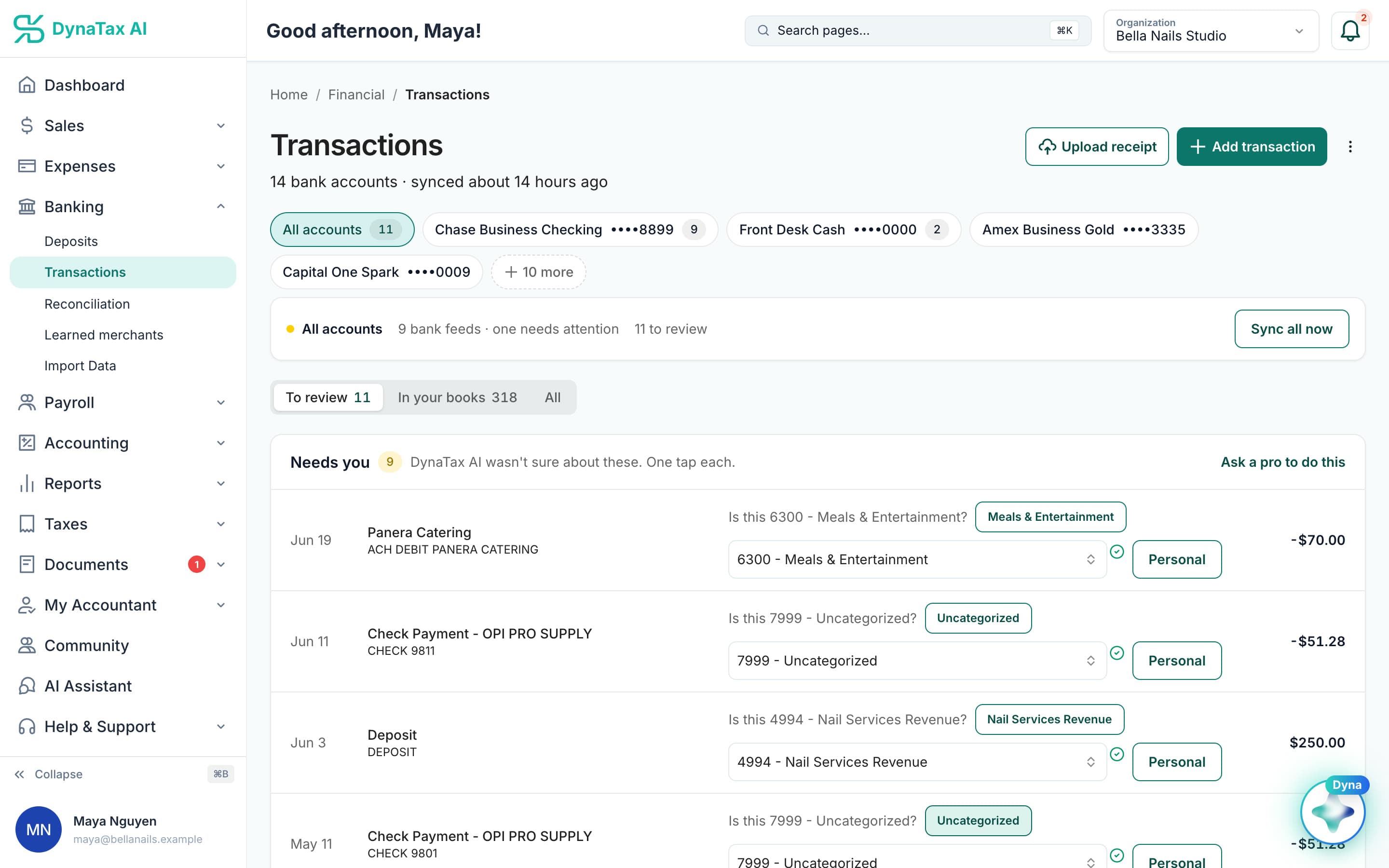
Dyna asks one question per transaction. One tap to accept. Sample data.
What it does
Dyna suggests an account for each transaction with a confidence score. You approve, and confirmed merchants fill in next time.
A real account, not a guess at a label
Each suggestion maps to an account in your chart of accounts, so an approved transaction is a posted journal entry — not a tag to clean up later.
Confidence you can see
Every suggestion carries a score. High-confidence merchants can post on their own; anything uncertain waits for you.
Your corrections stick
Correcting a category teaches the merchant rule. The same merchant fills itself in next time.
How it works
How AI categorization works
- 1
Transactions arrive
From the bank feed, an import, or a receipt you upload.
app.dynatax.ai/client/…/dashboard/financial/transactions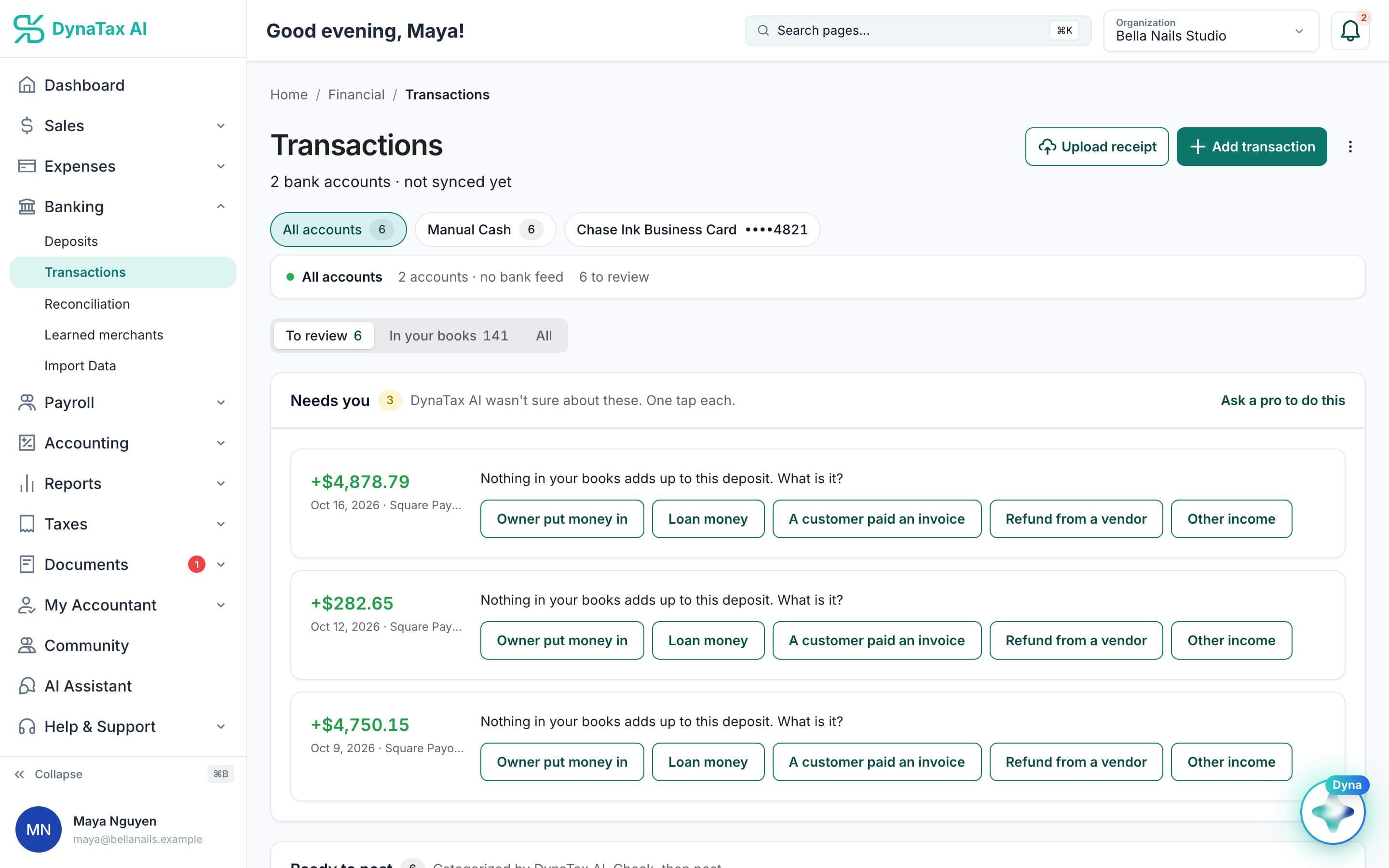
A deposit Dyna can’t place gets plain-English choices, not an account list.
- 2
Dyna suggests an account
It reads the merchant, amount and history, then suggests an account with a confidence score.
app.dynatax.ai/client/…/dashboard/financial/transactionsEach suggestion is a numbered account from your own chart.
- 3
You approve or correct
Approve in a click. A correction becomes a learned merchant, so you do not make it twice.
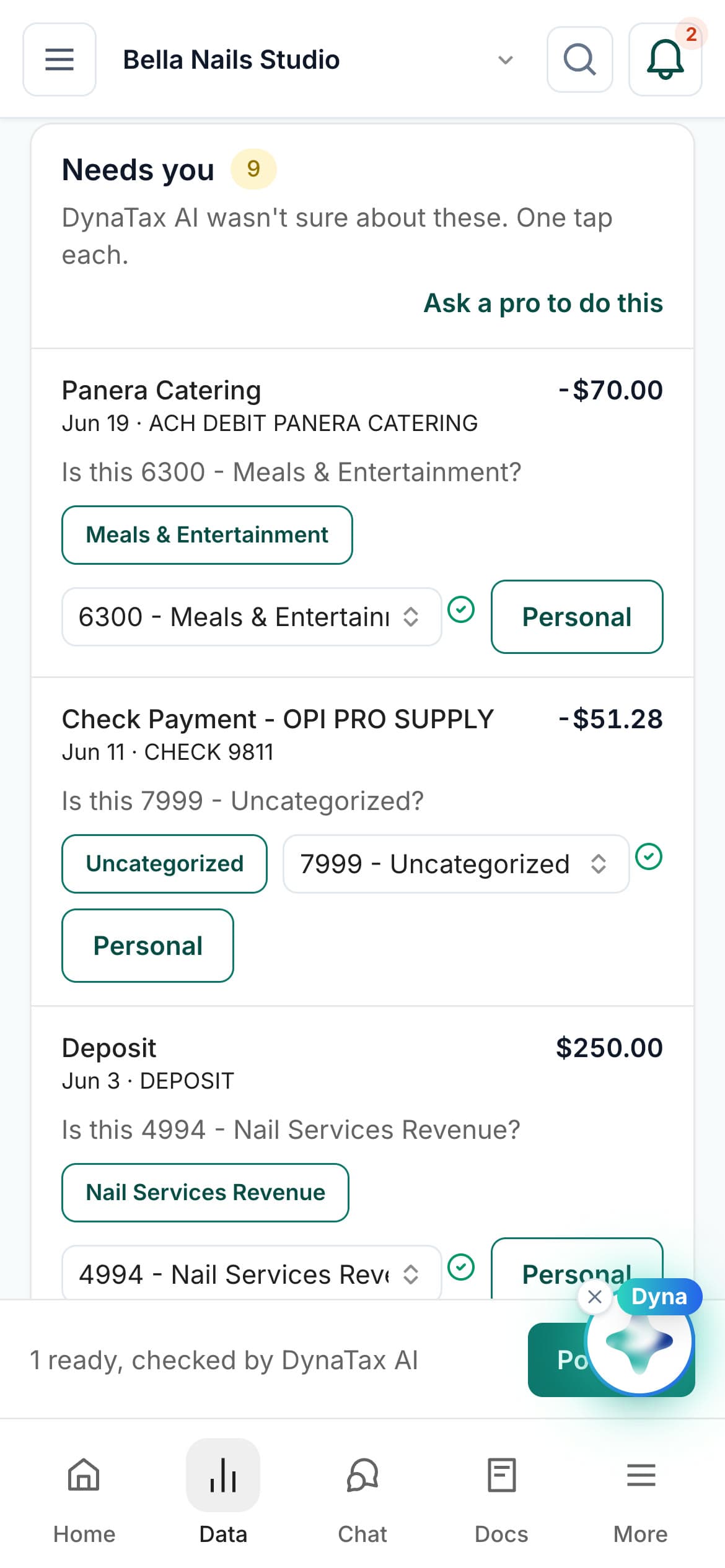
The same review on your phone.
The details
AI categorization, in detail
A short Needs you list
Transactions Dyna wasn’t sure about wait in a Needs you list. Each row asks a plain question, such as “Is this 6300 – Meals & Entertainment?”, with the suggested account one tap away.
Deposits explained in plain words
When a deposit matches nothing in your books, Dyna asks what it is and offers plain answers: owner put money in, loan money, a customer paid an invoice, a refund from a vendor, or other income.
Personal charges stay out
A personal purchase on the business card gets one tap: Personal. It is kept out of your books, with an Undo if you tapped too fast, so your reports and tax estimates aren’t inflated by a grocery run.
Works on your phone
The same review list fits a phone screen. Clear the week’s questions while you wait for a coffee. Rather not? Ask a pro to do this takes you straight to inviting your CPA.
Trust
Your books, on your terms
Read-only bank connection
You sign in on your bank’s own screen. DynaTax AI can see balances and transactions. It can’t move money.
You stay in control
Nothing posts without your approval, except merchants you’ve already confirmed above the auto-post threshold.
Your data isn’t training data
Your data isn’t used to train AI unless you turn on Allow AI Training. It’s off by default.
A professional when you want one
Invite your own CPA into your books, or find one in the marketplace. Dyna’s answers are general information, not professional advice.
Plans
Where AI categorization is included
Every paid plan, within your monthly AI allowance. Every plan starts with a 14-day free trial, no credit card required. Pay yearly and get 12 months for the price of 10.
Bring your books with you: import transactions, your chart of accounts, opening balances, customers, vendors, invoices and bills from CSV, Excel or a QBO/OFX bank download. Switching from QuickBooks
- Starter$29 / month · 1 user
- GrowthRecommended$49 / month · 3 users
- Pro$99 / month · 10 users
Related features
Works well with
FAQ
AI categorization questions
Run your business. Live your life.


Try AI categorization with your own books for 14 days. Less time on the books, more time for everything else.
No credit card required